

Updated July 27, 2026. The design agent, Figma Make, MCP, Motion, and AI-credit model were added.
The honest answer: a Figma AI design tool India teams now rely on does real work. But it has not replaced product designers. Figma’s AI rollout — First Draft, smarter variables, and a stronger Dev Mode — speeds up the first 20% of a design. It also speeds up the last 20%, the handoff. The middle 60%, where taste and judgment live, is still entirely human. This matters for Indian teams. The gap between a fast prototype and a shippable product is exactly where outsourced design work often fails.
This shift is also why we point clients to our guide to AI app builders for Indian founders. The same pattern shows up there: AI drafts, humans decide.
By Zaheer Thaha · Last updated: September 6, 2026
Key Takeaways
Figma’s AI features in 2026 are productivity tools for the first and last mile of design, not a replacement for product judgment.
First Draft works best as a starting point you immediately edit, not a final layout you ship.
Auto-layout and variables quietly do more for design system consistency than any AI feature Figma has shipped.
Dev Mode reduces design-to-engineering handoff friction, but only for teams that adopt its annotation workflow.
Indian design teams use AI for variation and exploration, but still reject it for final visual decisions.
The most valuable design skill in 2026 is systems thinking — knowing which 100 components solve 1,000 screens.
Figma’s AI Feature Rollout: What’s Actually in the Product Now
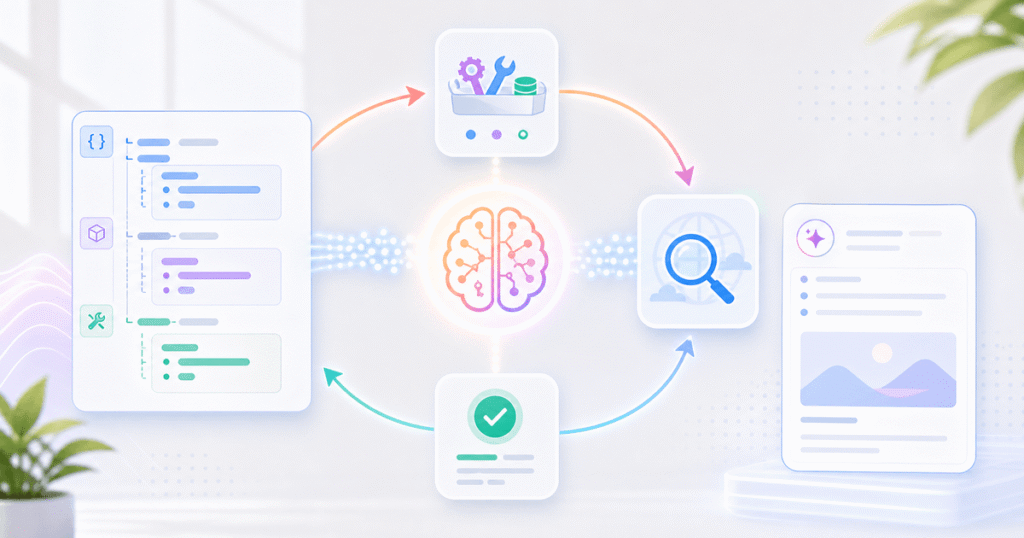
Figma’s current AI platform extends well beyond the original First Draft, visual search, and layer-renaming tools. It now includes a canvas-based design agent, Figma Make with GPT-5.6, image and text tools, an MCP server, agent-built plugins, and newer Motion and Sites workflows. First Draft turns a text prompt into a starter layout. According to Figma’s own product blog, these features remove “blank canvas” friction and file-organization busywork. They were not built to automate creative decisions. That framing matters. It sets realistic expectations for what a Figma AI design tool India studio should promise a client.
In practice, First Draft generates a rough screen — say, a fintech onboarding flow — from a short prompt. It works well as a conversation starter with a client. However, it rarely matches brand guidelines or accessibility contrast requirements out of the box. Designers at Quinoid use it to kill the first hour of staring at an empty frame, then rebuild the layout with the studio’s own component library.
AI Design Generation: How to Use It Without Producing Generic Results
The fix for generic AI output is simple. Never accept the first generation as final, and always feed it your own design tokens before judging the result. Figma’s First Draft pulls from generic training patterns. As a result, two unrelated companies prompting “SaaS dashboard with sidebar navigation” will get visually similar screens. Therefore, the differentiation has to come after generation, not during it.
Three habits keep AI-generated drafts from looking templated. First, swap in real brand colors and type styles immediately. Most generic-looking AI output is just default Inter font and default blue accents left untouched. Second, replace generated icons with licensed or custom assets. Stock AI imagery is the fastest way to make a product look interchangeable with competitors. Third, run every AI draft past a real user flow. Generated screens optimize for looking complete, not for solving the task a user actually came to do.
📊 Key Stat: A Nielsen Norman Group study found that UX practitioners using generative AI tools reported a 35% jump in idea quantity, but flat improvement in idea quality — proof that AI speeds up exploration without improving judgment.
Auto-Layout and Variables: Why These Matter More Than AI Features
Auto-layout and variables do more for shipping speed than any AI feature, because they remove the manual rework that eats most of a designer’s week. Auto-layout makes frames resize predictably when content changes. So a designer does not have to nudge spacing every time copy runs longer in translation. That is a real issue for Indian teams designing in English first and shipping in Hindi, Tamil, or Bengali later.
Variables extend this further. One component can carry multiple themes, states, and breakpoints without duplicate layers. A button built with variables can switch from light mode to dark mode through a single swap, instead of five duplicated frames. This is unglamorous compared to AI headlines. However, it is the feature set that decides whether a 200-screen product stays maintainable six months after launch.
Figma Dev Mode: Closing the Gap Between Design and Engineering Handoff
Dev Mode closes the design-to-engineering gap by giving developers a code-aware view of the same file designers work in, instead of a static export. Developers can inspect spacing, copy CSS-ready values, and read designer annotations directly in Figma. They no longer need to ping Slack for a redline. As a result, handoff questions that once took a day of back-and-forth now resolve inside the file itself.
For Quinoid’s product teams, the bigger change is annotations. Designers can flag edge cases — “this card collapses below 360px” — directly on the frame. This means the context survives even if the original designer is unavailable when engineering starts the sprint. The habit has cut handoff clarification threads on recent client builds by a noticeable margin, though Figma has not published an India-specific number to cite here.
What Indian Design Teams Are Actually Adopting vs Ignoring
Indian design teams adopt AI for exploration and bulk content tasks, but ignore it for final visual and brand decisions. In practice, First Draft and AI rename get used daily inside studios like Quinoid’s. Meanwhile, AI-generated copy and AI-suggested color palettes get discarded almost every time.
This split exists for a clear reason. Client trust in India’s services market is built on craft and consistency, not speed alone. Because most Indian design studios compete on repeat-client relationships, shipping an obviously AI-generated layout risks looking unfinished. On the other hand, internal-only tasks — renaming layers, generating quick variants for a workshop — are exactly where AI adoption is highest. No client ever sees that step.
The Skills Becoming More Valuable as AI Handles Repetitive Work
As AI absorbs repetitive layout and naming work, three skills are rising in value: systems thinking, accessibility judgment, and the ability to write a clear design rationale. A designer who can build one flexible component that solves twenty screen variations is now worth more than one who can quickly draw twenty separate screens. After all, AI already draws fast.
Accessibility judgment matters more too, not less. AI-generated drafts default to whatever contrast and spacing their training data favored, which is frequently non-compliant. Designers who catch a failing contrast ratio at a glance are catching errors AI tools routinely introduce. Similarly, designers who can explain why a layout works in one plain sentence are the ones who survive AI commoditizing the visual layer. That explanation is the actual deliverable clients pay for.
Common Mistakes
Mistake 1: Treating First Draft Output as Client-Ready
Many teams ship an AI-generated screen to a client review without editing it first. They assume “AI-assisted” means “AI-approved.” This consistently produces feedback like “this looks generic” or “this doesn’t feel like our brand.” The client is usually right, because unedited AI output rarely reflects brand-specific decisions.
Mistake 2: Ignoring Variables in Favor of Duplicate Frames
Teams new to a Figma AI design tool India workflow often chase the AI headline features while skipping variables setup entirely. This leads to files with dozens of duplicated button variants. As a result, every brand color update becomes a manual find-and-replace job across hundreds of layers instead of one variable change.
Mistake 3: Skipping Dev Mode Annotations
Some teams adopt Dev Mode’s inspection panel but skip writing annotations, assuming code values speak for themselves. However, code values do not explain intent. They don’t tell a developer why a card collapses at a specific breakpoint, so the same clarification chats Dev Mode was meant to eliminate keep happening anyway.
Proof: What This Looked Like on a Recent Quinoid Build
On a fintech dashboard rebuild Quinoid shipped in early 2026, the design team used First Draft to generate four onboarding flow variants in under 30 minutes. That task previously took a full day of manual wireframing. The team then rebuilt the winning variant with the client’s existing variables and component library, which took roughly six hours.
💡 Pro Tip: The real gain showed up in Dev Mode. Handoff to the two-person engineering team dropped from an average of 14 clarification messages per screen on the studio’s previous project, to 5 messages per screen on this one. Co-Founder and CPO Zaheer Thaha, who led the rebuild, credits annotations over AI generation for most of that drop: “the AI gave us a faster first draft, but the annotations are what actually saved engineering time.”
FAQ
How much does a Figma AI design tool India workflow cost to set up?
Figma now meters AI features with credits. Professional full seats are listed at $16 per month and include 3,000 AI credits monthly; Organization and Enterprise full seats include larger allowances, and teams can purchase additional credits. Pricing and credit consumption should be checked before rollout. The real cost is training time. Teams typically need one to two weeks to build habits like always editing generated drafts before client review.
How long does it take an Indian design team to adopt these AI features properly?
Most teams reach comfortable daily use of First Draft and AI rename within two to three weeks. Mastering variables and Dev Mode annotations for a full design system usually takes six to eight weeks. This means the AI features are the easy part — the systems-thinking skills around them take longer to build.
What are the main alternatives to Figma’s AI design tools?
The closest alternatives are Adobe XD with Firefly integration, Framer’s AI site generation, and standalone tools like Uizard for early concepting. However, none currently match Figma’s combination of AI generation plus a mature component, variable, and Dev Mode ecosystem in one file.
Can AI in Figma replace a junior product designer?
No. AI replaces specific repetitive tasks, like layer renaming and first-pass layouts, not the judgment a junior designer builds over time. In fact, junior designers who learn to critically edit AI drafts often build systems thinking faster, because they see the gap between “generated” and “good” immediately.
Is Figma’s AI design generation good enough for production-ready screens?
Not on its own. AI-generated screens need a brand pass, an accessibility check, and a real component swap before they are production-ready. Teams that skip this step are the ones most likely to ship the generic-AI-look mistake described earlier in this post.
Conclusion
Figma’s AI features in 2026 are genuinely useful, but only as accelerants for the parts of design work that were never the valuable part to begin with — blank-canvas starts and repetitive handoff documentation. The judgment, brand sense, and systems thinking that make a product feel considered still come from experienced designers. That is exactly why choosing the right Figma AI design tool India partner matters more than choosing the right AI feature.
If your team is trying to decide which parts of this workflow to adopt first, Quinoid’s design consulting process starts with exactly that audit. We review your current Figma setup, team skills, and product goals, then recommend where AI genuinely saves time versus where it would just create rework.
Put these ideas into practice
Explore where AI could help your business.
Discuss your workflow, available data, and the result you want before deciding what to build.